
MCP Connector
Copilot Connector
Use Statista as a data source across Microsoft 365 Copilot experiences. The connector is pre-configured in your tenant - select it as a source in Copilot Chat or use it with the Researcher agent for in-depth analysis.
Prerequisites
- Microsoft 365 Copilot license
- Statista Connector enabled in your tenant (by your admin)
- Valid Statista subscription with Connect access
1
Using the Connector
1
Verify the Connection
The Statista Connector should already be available in your tenant. To verify:
- Open Microsoft 365 Admin Center
- Navigate to Copilot → Connectors
- Check that Statista Connect shows as "Ready"
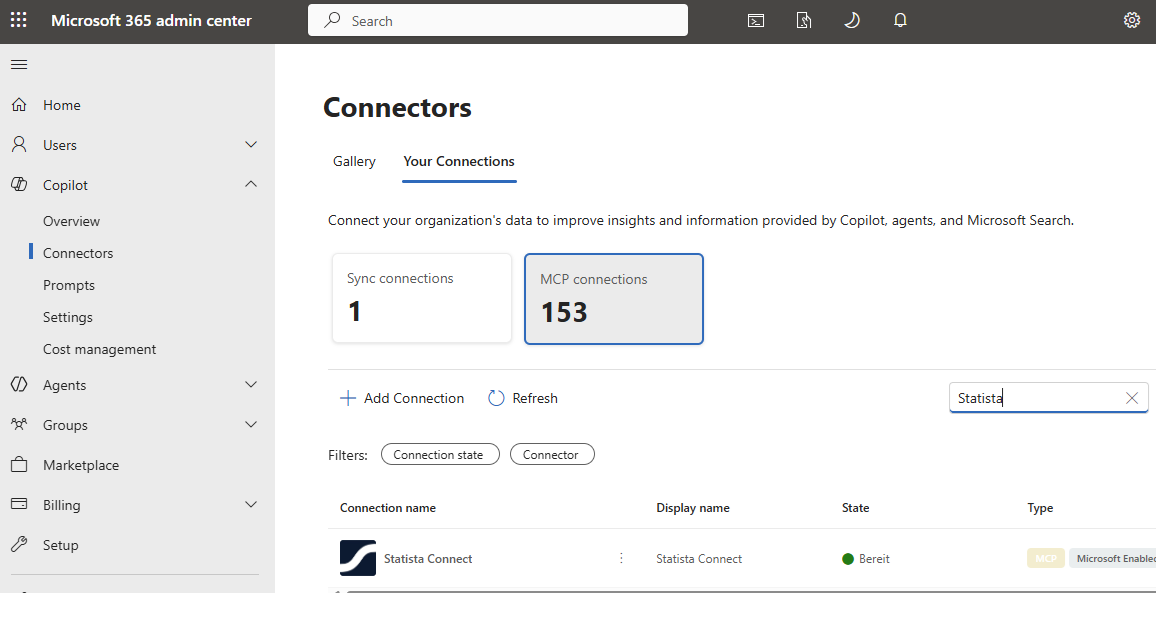
If you don't see the Statista Connector, contact the administrator for your tenant.
2
Use in Copilot Chat
Access Statista data directly in Microsoft 365 Copilot by selecting it as a source:
- Open Microsoft 365 Copilot (https://m365.cloud.microsof)
- In the chat, click on Sources or the source selector
- Select Statista from the available sources
Once selected, ask questions about market data, statistics, or consumer insights:
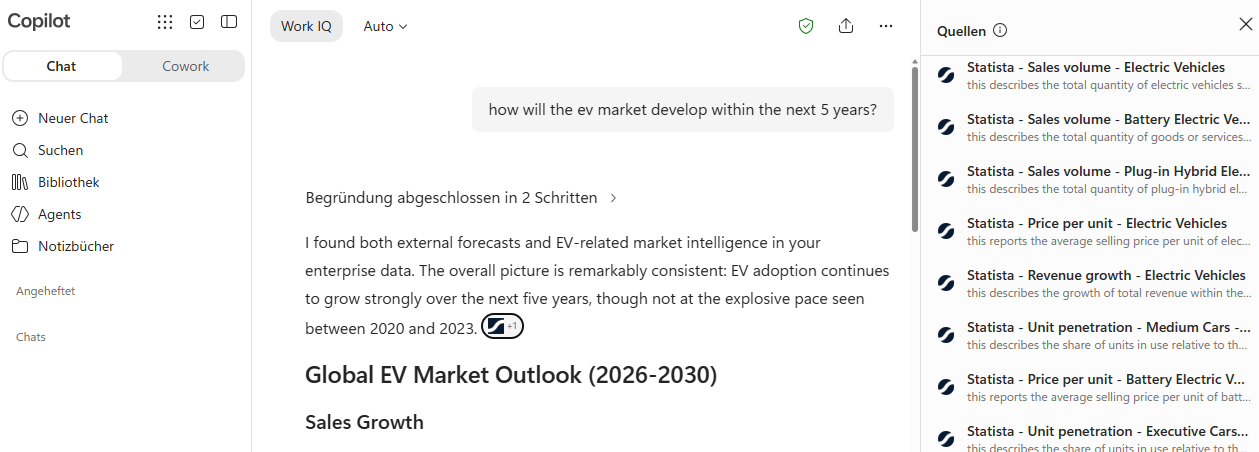
You can combine Statista with other sources like your SharePoint files or web search for comprehensive research.
3
Use with Researcher Agent
For in-depth market analysis, use Statista with the Researcher agent:
- Open Microsoft 365 Copilot
- Select the Researcher agent
- In your research query, Statista will be available as a data source
- The Researcher will automatically pull relevant statistics and market data
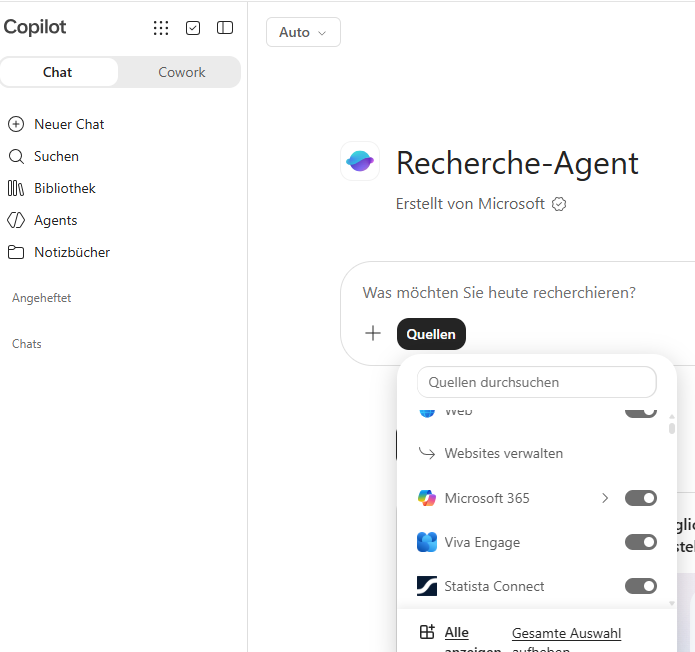
Research Report Example
The Researcher can generate comprehensive reports combining Statista data with other sources:
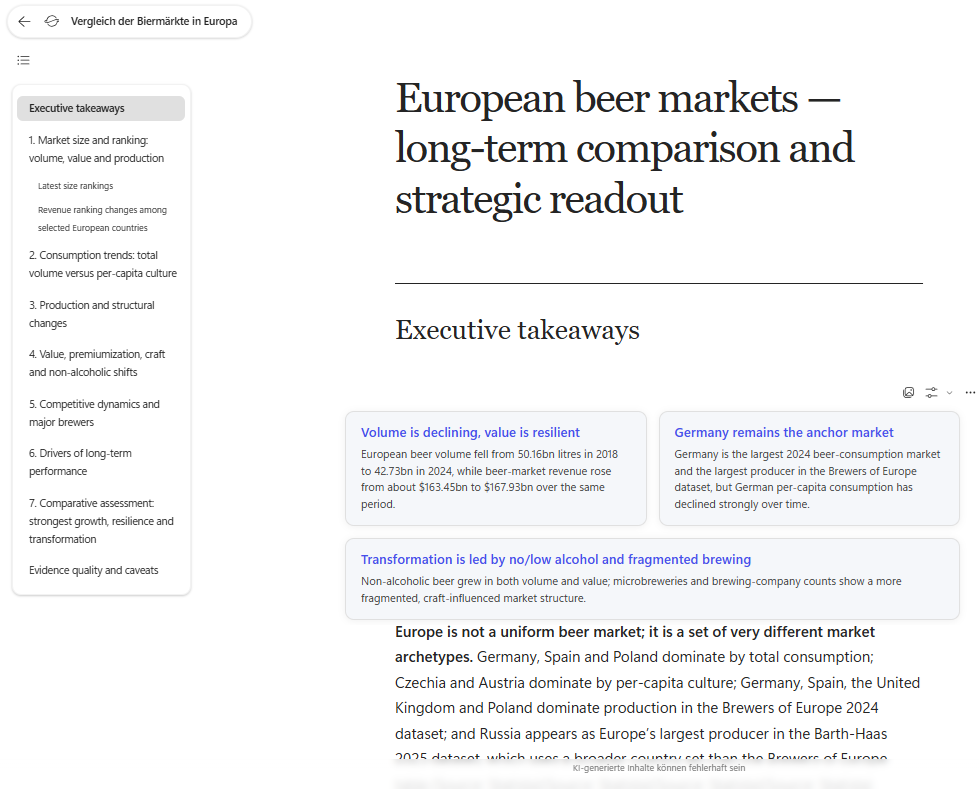
All Statista results include proper source citations with links to the original data on statista.com.