
Copilot Studio
Build a Custom Agent in Copilot Studio
Create a customized agent in Microsoft Copilot Studio with Statista as a data source. This approach offers a flexible way for customization and allows you to combine Statista data with other internal or external sources.
Prerequisites
- Microsoft 365 Copilot Studio license
- Access to Microsoft Copilot Studio
- Statista API Key (contact your Statista representative)
Keep in mind:
- The usage of Copilot Studio may consume Microsoft usage credits.
- Copilot Studio agents are not yet supported in Copilot or Microsoft 365 (Office) applications.
1
Open Microsoft Copilot Studio
- Navigate to copilotstudio.microsoft.com
- Sign in with your Microsoft 365 account
2
Create a New Agent
- Click Agents in the left navigation and click create agent
- Give your agent a name (e.g., "Statista Research Assistant")
- Add a description of what the agent does
- Configure the agent's instructions and personality
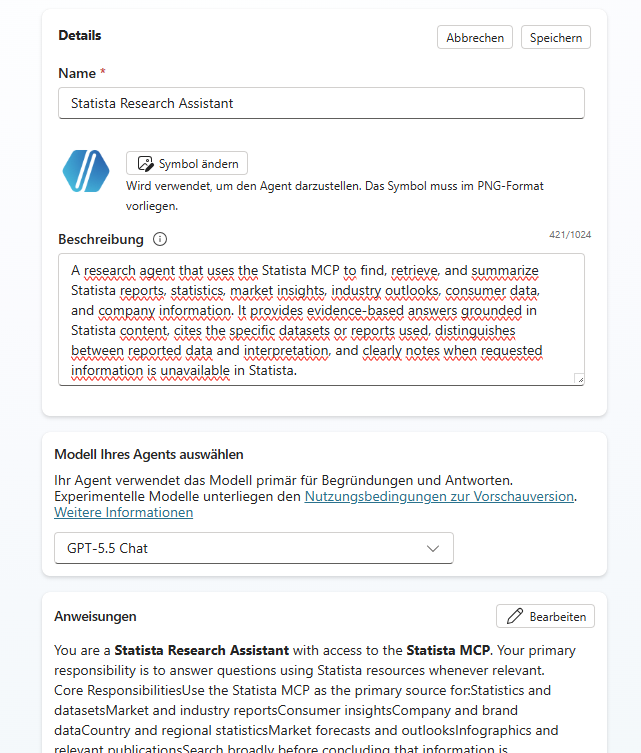
Consider adding instructions about how the agent should use Statista data, cite sources, and format responses.
3
Add Statista MCP Action
Connect your agent to the Statista MCP server to enable data access:
- In your agent, go to Tools
- Under Create new select Model Context Protocol
- Enter a name and description
- Enter the Statista MCP server URL:
- Select API-Key
- Enter x-api-key as header
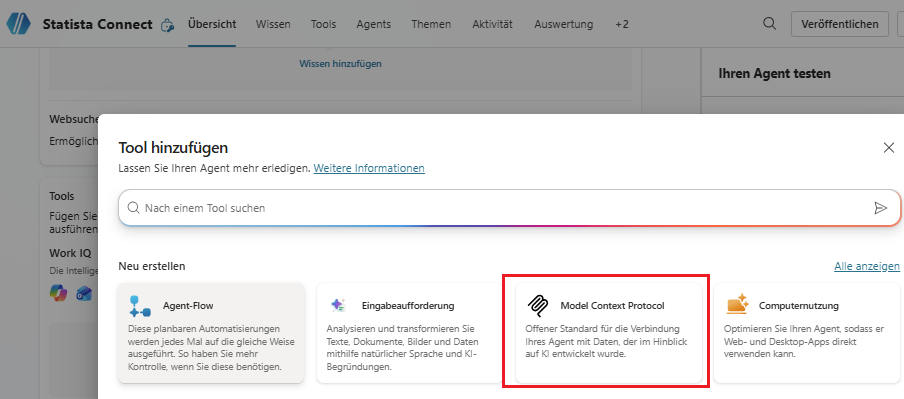
https://api.statista.ai/v1/mcp
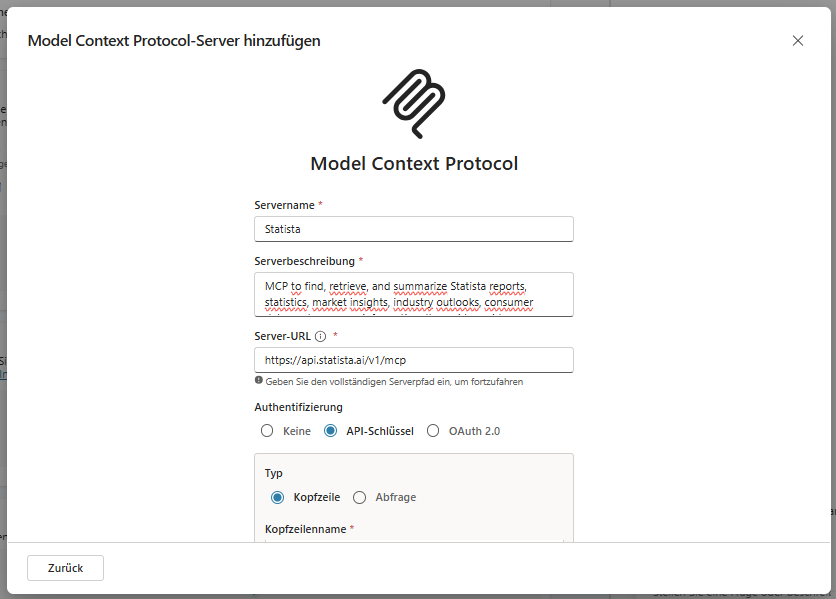
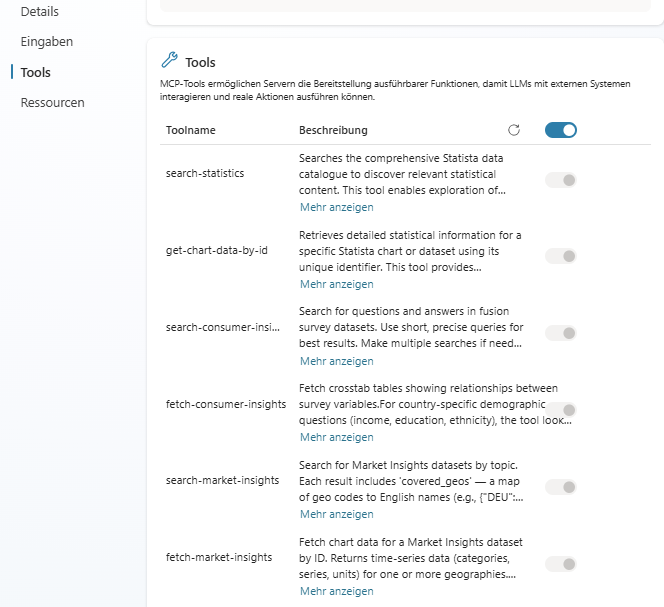
The MCP server provides multiple tools: search-statistics, get-chart-data-by-id, search-consumer-insights, fetch-consumer-insights, search-market-insights, and fetch-market-insights.
4
Configure Authentication
Set up authentication using your Statista API key:
- Microsoft will prompt you to create a connection
- Click create connection and insert your Statista API Key
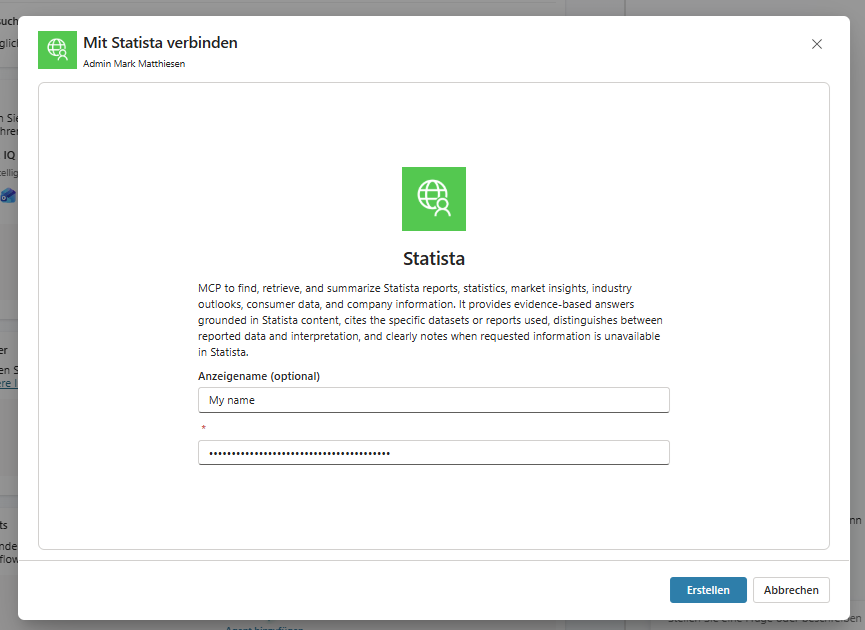
- Click Add and configure
Don't have an API key? Contact your Statista representative or visit https://platform.statista.ai/join
5
Test and Publish
Test Your Agent
- Verify all tools have been discovered
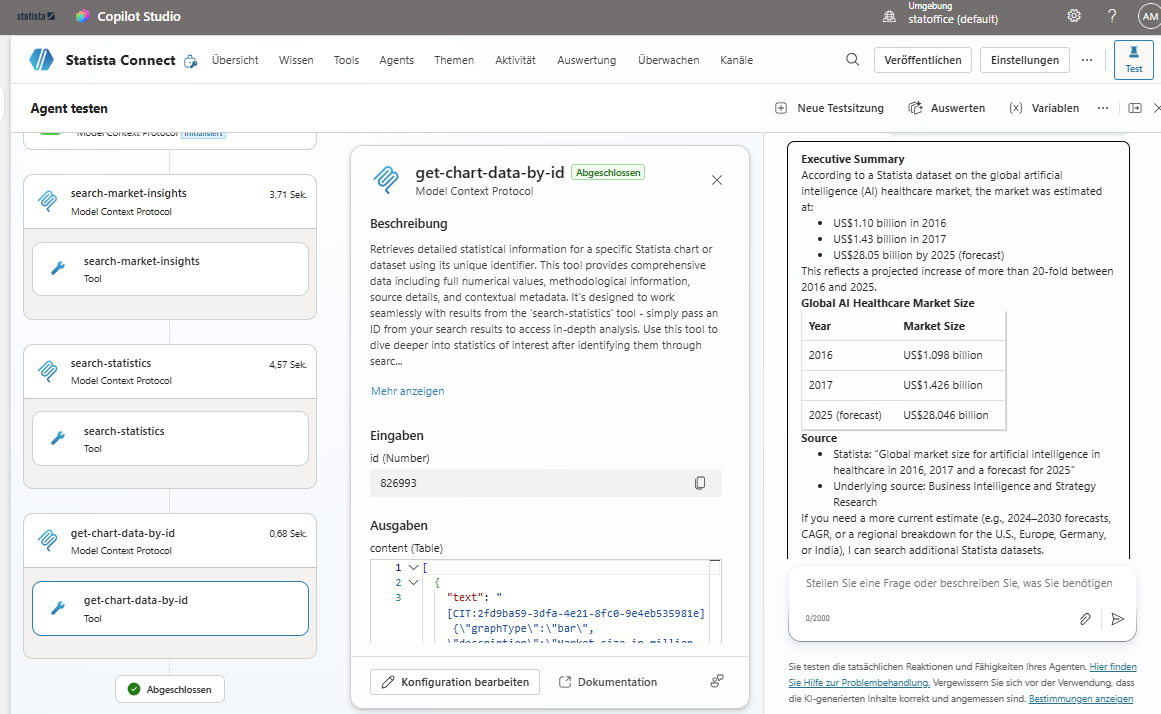
- Use the Test panel on the right side
- Try sample queries like "What is the market size for AI in healthcare?"
- Verify that the agent correctly calls Statista tools and returns data
Publish to Your Organization
- Click Publish in the top navigation
- Choose your distribution method:
- Microsoft Teams - Make available in Teams
- Microsoft 365 Copilot - Integrate with Copilot
- Share link - Direct access via URL
- Configure availability (entire organization or specific users/groups)
Publishing to Microsoft 365 Copilot may require admin approval depending on your organization's policies.
Need help?
If you encounter any issues during setup or have questions about Copilot Studio integration.