
Declarative Agent Integration
Get instant access to Statista through a pre-built, ready-to-use AI assistant for Microsoft 365 Copilot. Our team handles the setup while you focus on your work.
- Microsoft 365 Copilot license
- Microsoft E3/E5 license
- Admin access to Microsoft 365 Admin Center
- Statista Connect Access - contact your Statista representative if you don't have access
Reach out to our team to request your custom Declarative Agent. We'll need some basic information about your organization and use case.
Contact Statista TeamA Statista employee will create a customized Declarative Agent for your organization and send you the agent manifest file (ZIP format). This pre-configured agent includes:
- Optimized system prompts for Statista declarative-agentta
- Pre-configured API or OAuth connection
- MCP Server configuration
- Security and authentication settings
Once you receive the manifest file from Statista, follow these steps to deploy the agent:
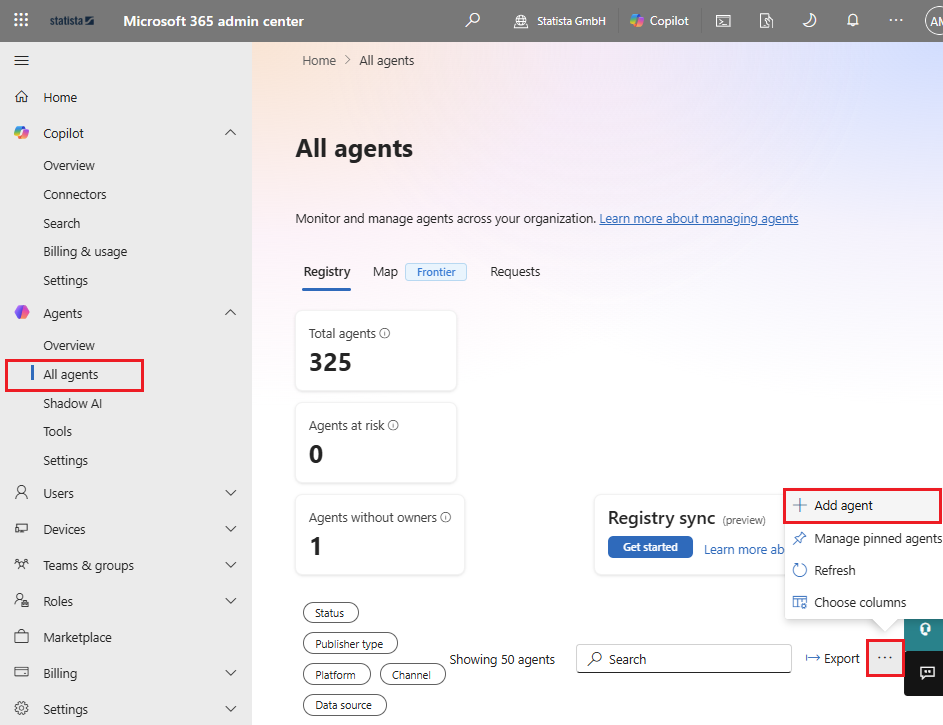
- Open the Microsoft 365 Admin Center
- Navigate to Agents in the left sidebar
- Click on All agents
- Select Add agent
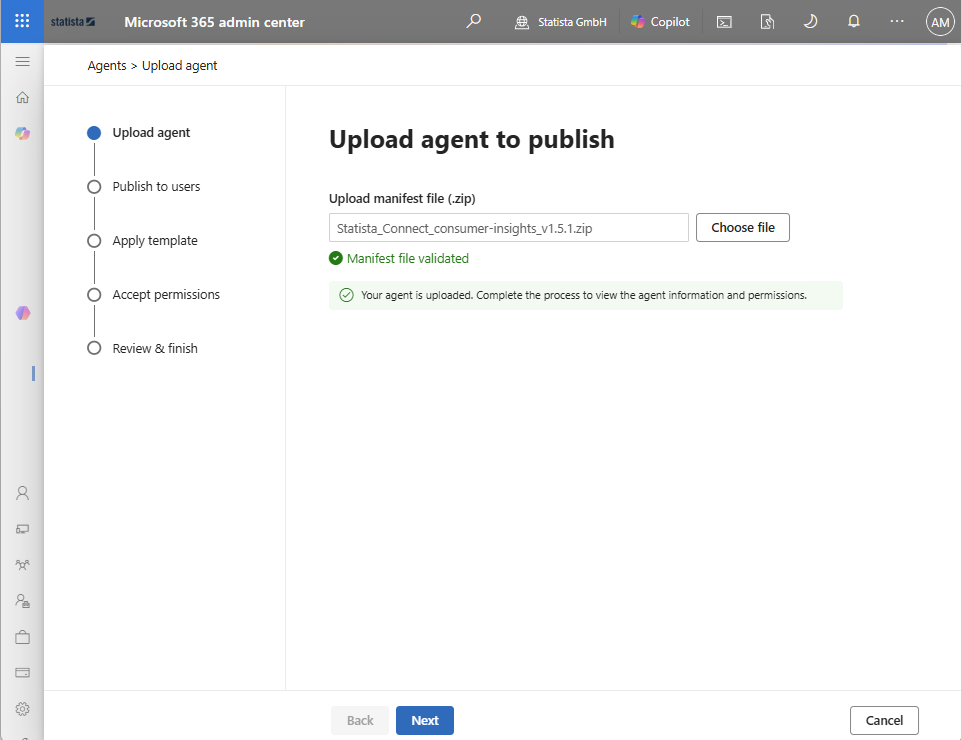
- Choose the manifest ZIP file provided by Statista and click Next
Configure which users should have access to the Statista agent and make it easily accessible.
User Assignment
- Within the "Publish to Users" tab, define who should have access to the agent
- You can try it out for yourself, enable it for a specific group, or for everyone
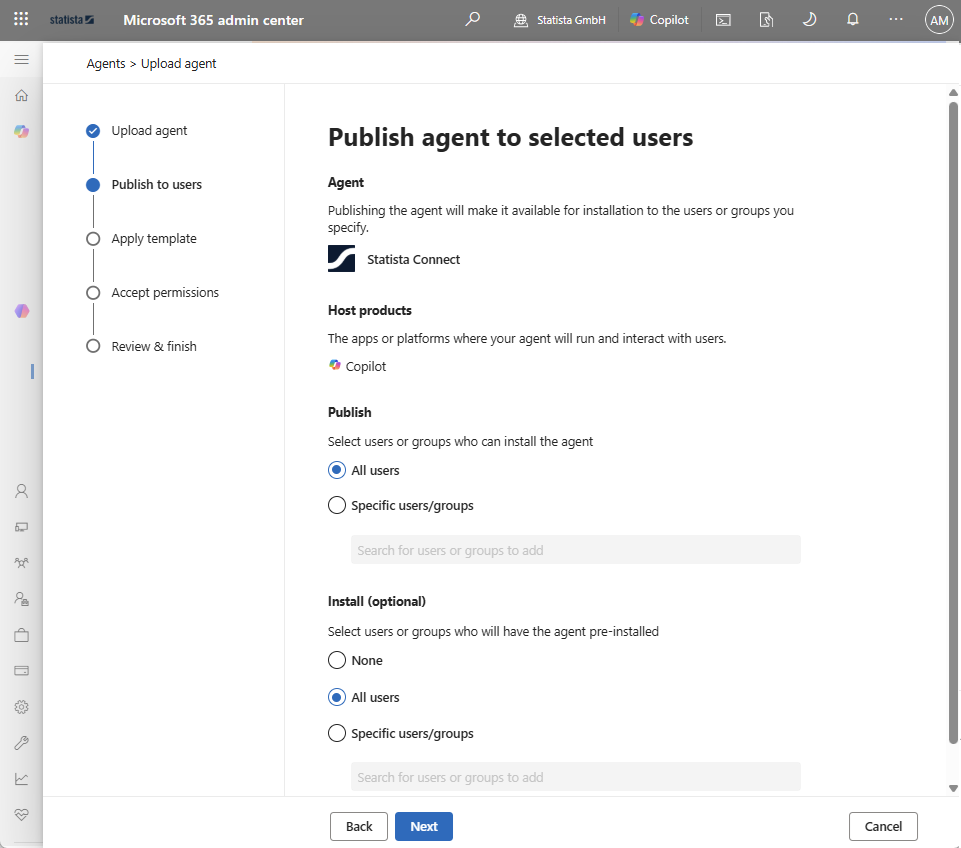
- Select your option and click Next
- Within the "Apply template" tab, define which policies should be applied or simply click Next
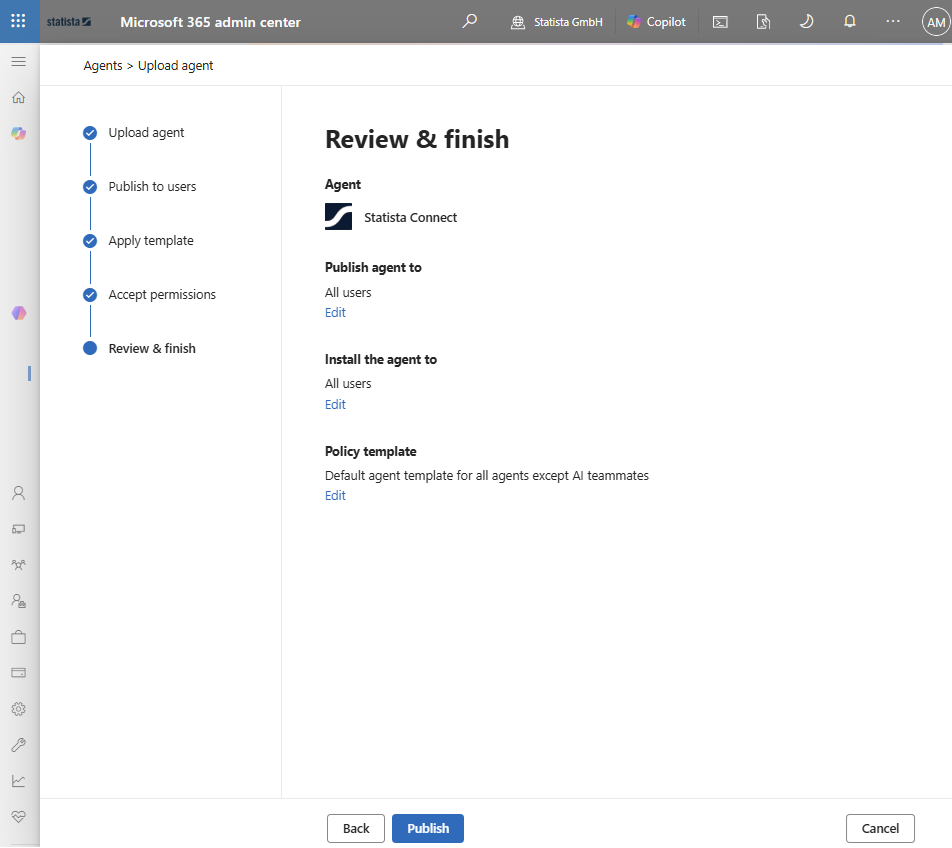
- Review the deployment options and click Publish
Pin Agent for Users (optional)
We recommend pinning the agent for quick access, especially during the initial rollout phase.
- Within the Agent, click on Pin for users
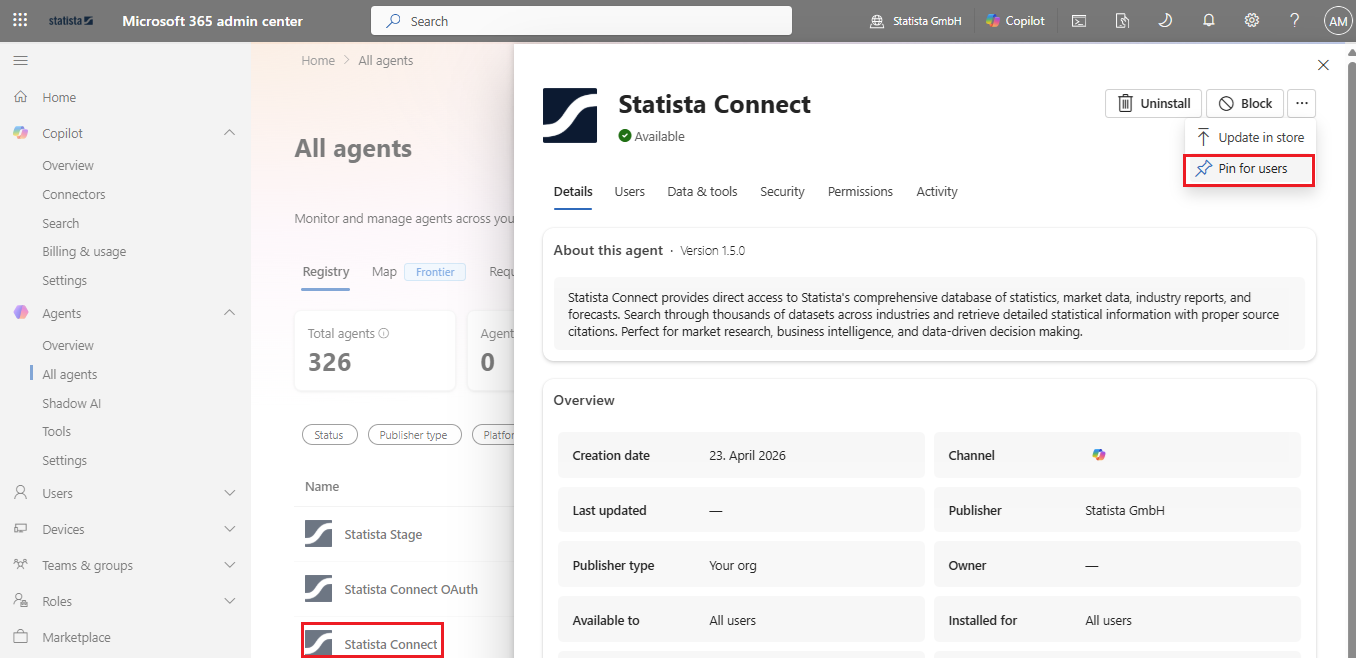
- Select all users or the same group you selected when deploying the agent
- This ensures the Statista agent appears automatically in users' Copilot interface
- Users can start chatting with the agent immediately without searching for it
- Open https://office.com
- The Statista Agent should be visible…
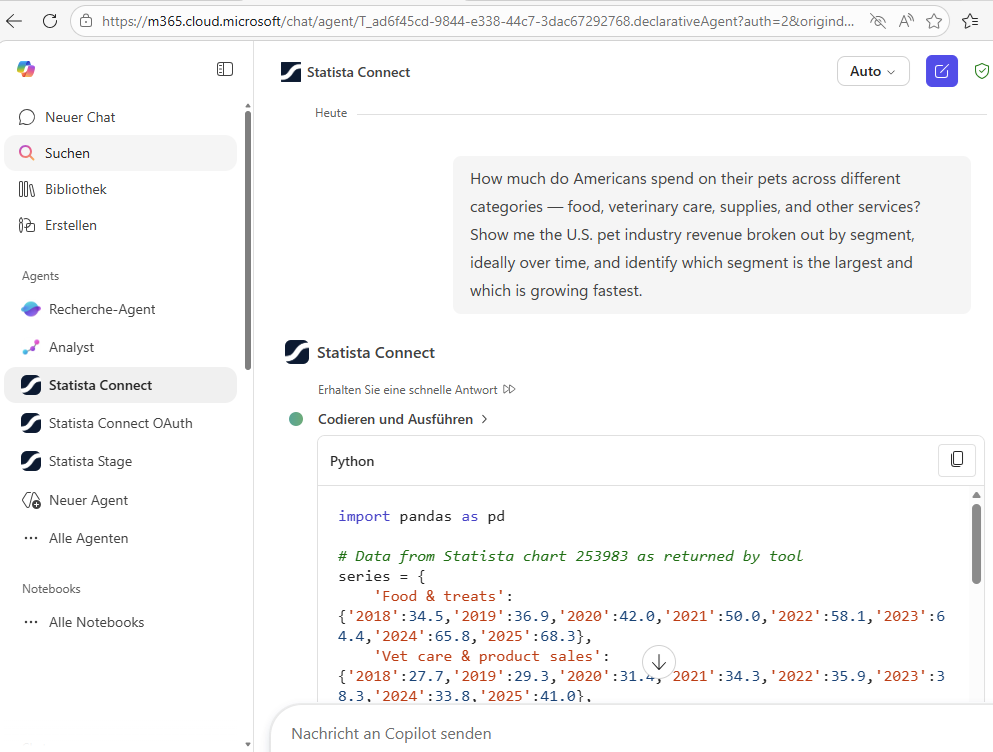
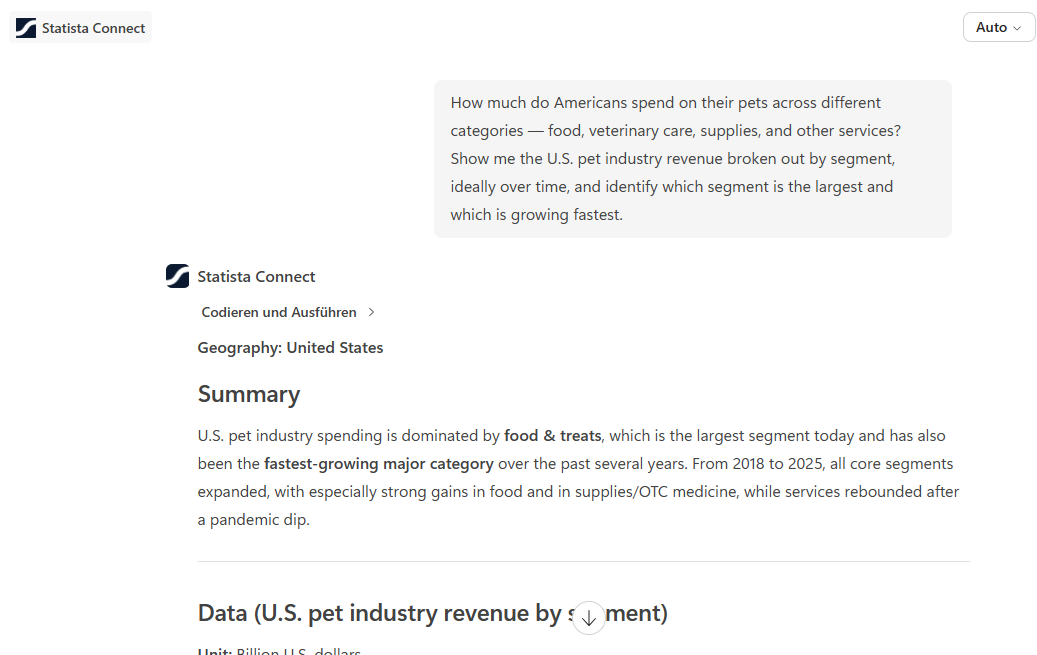
- And be able to answer your questions.
Need help?
If you encounter any issues during setup or have questions about the Declarative Agent.