
Install from Microsoft Store
Install Statista Connect directly from the Microsoft 365 App Store. Users authenticate with their existing Statista account via OAuth.
- Microsoft 365 Copilot license
- Statista account with active subscription and access to Statista Connect
- Your organization allows app installation from the Store
Depending on your organization's Microsoft 365 configuration, the app may not be visible or installable for all users. Common reasons include:
- Admin has disabled third-party app installation
- App requires admin approval before users can install
- Conditional Access policies blocking the app
- User not licensed for Microsoft 365 Copilot
- Regional availability restrictions
If you cannot find or install the app, contact your IT administrator. Or, if sideloading is allowed in your tenant, use the Declarative Agent method instead.
As Microsoft 365 End User
Statista Connect is available in multiple locations within Microsoft 365. Choose any of the following methods:
Option A: Microsoft Teams
- Open Microsoft Teams
- Click on Apps in the left sidebar
- Search for "Statista Connect"
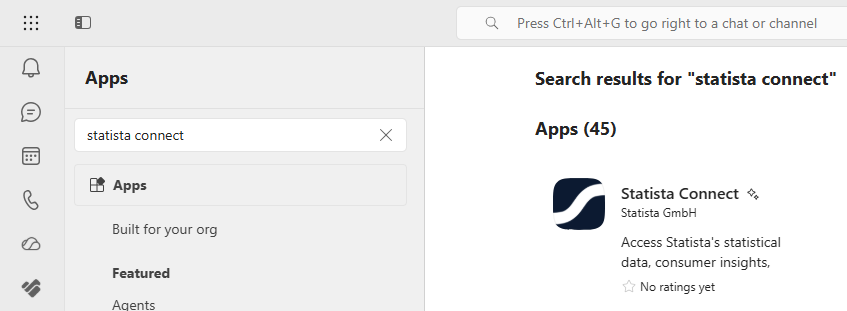
Option B: Microsoft 365 Copilot
- Open Microsoft 365 Copilot (https://m365.cloud.microsoft)
- Click on the Agents or Apps icon
- Search for "Statista Connect"
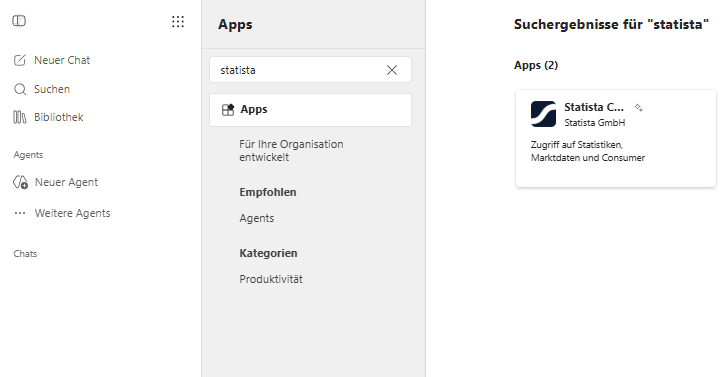
Option C: Outlook / Excel / Other M365 Apps
- Open a Microsoft 365 application (Outlook, Excel, Word, etc.)
- Look for the Apps or Add-ins option
- Search for "Statista Connect"
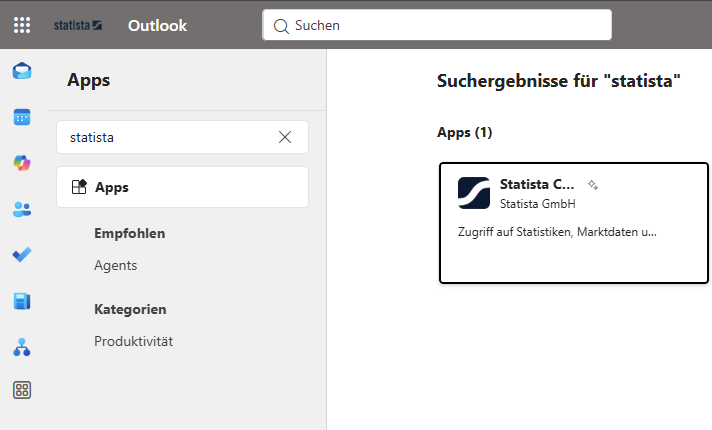
Option D: Microsoft Cowork
- Open Microsoft Cowork
- Click the + besides the chat
- Click on Manage skills and Plug-Ins
- Search for "Statista Connect"
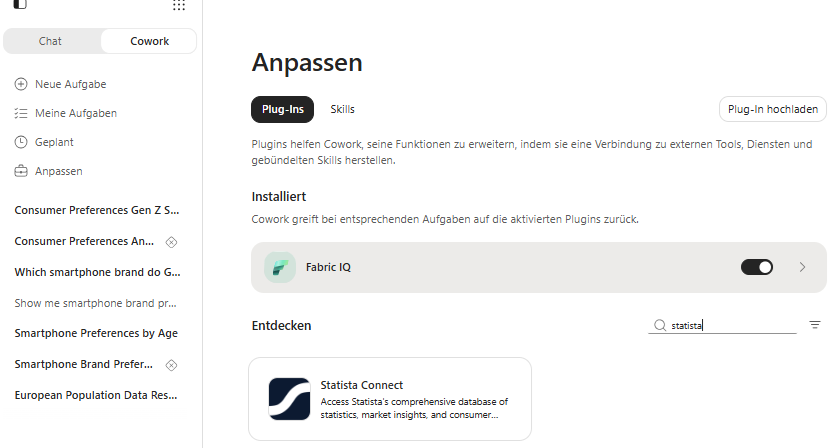
Option E: Direct Link
You can also access the app directly via AppSource:
Open in AppSource- Click on Statista Connect in the search results
- Review the permissions and click Add or Get it now
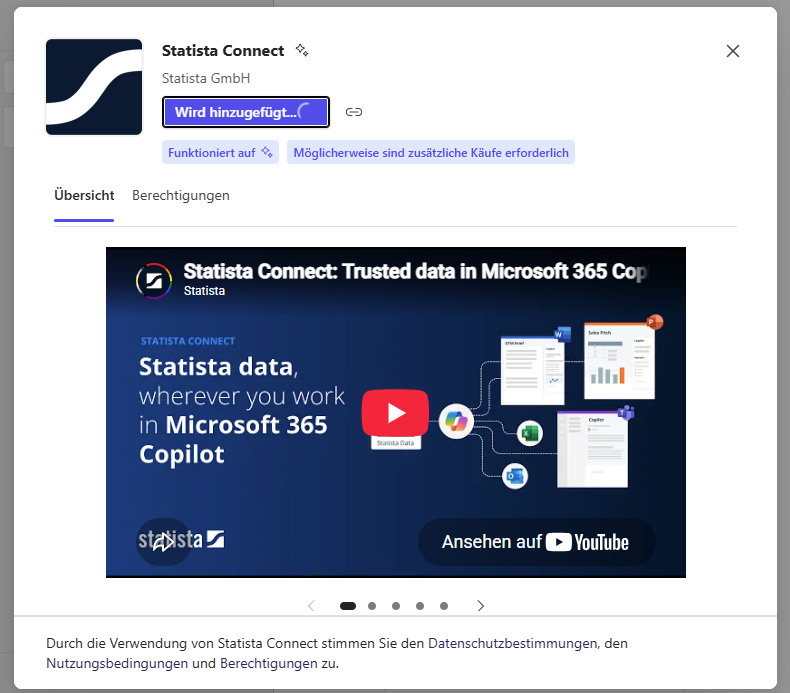
After installation, you need to connect your Statista account:
- Open the Statista Connect agent in Copilot
- Ask any question and the agent will prompt you to sign-in
- You will be redirected to the Statista login page
- Enter your Statista credentials
- After succesfull login, the agent will respond to your question
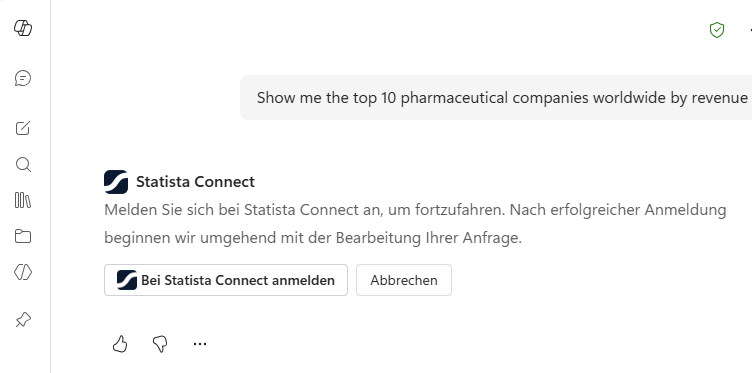
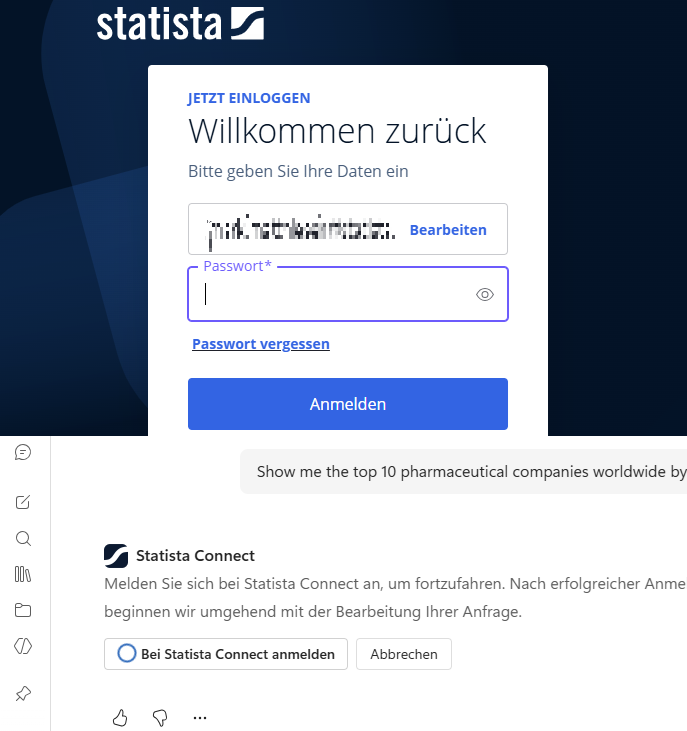
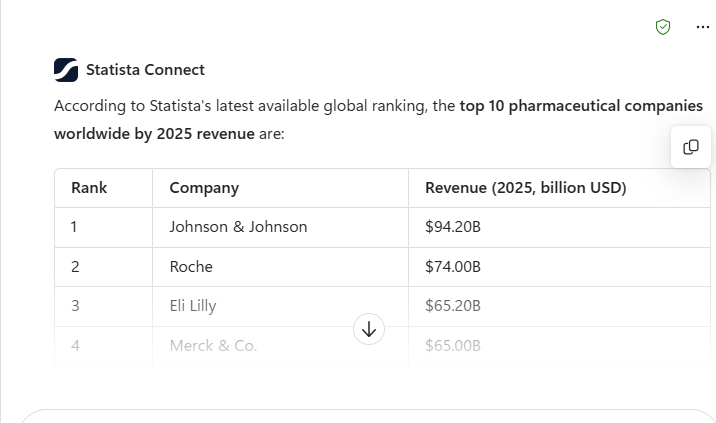
Once connected, you can immediately start asking questions:
- Open Microsoft 365 Copilot
- Select the Statista Connect agent
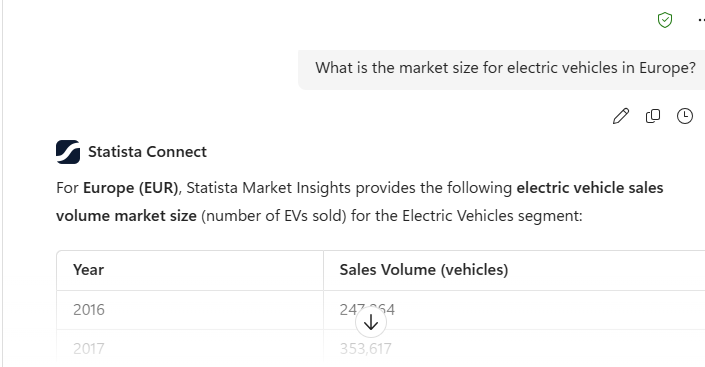
- Ask questions like "What is the market size for electric vehicles in Europe?"
Using with Cowork
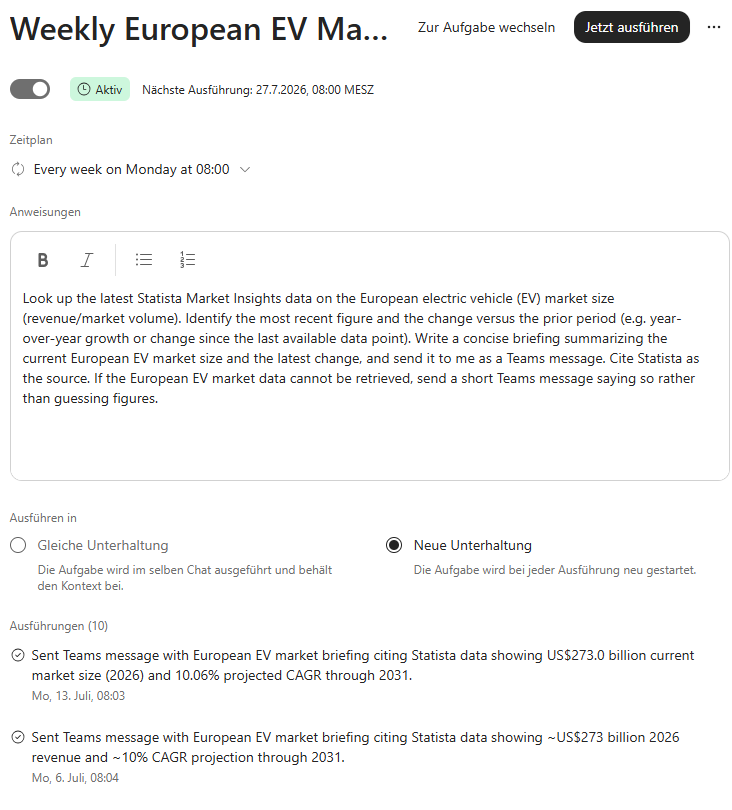
You can also use Statista Connect in Microsoft Cowork for automated workflows:
- Create scheduled briefings
- Set up recurring market reports
- Automate data collection tasks
As Microsoft 365 Administrator
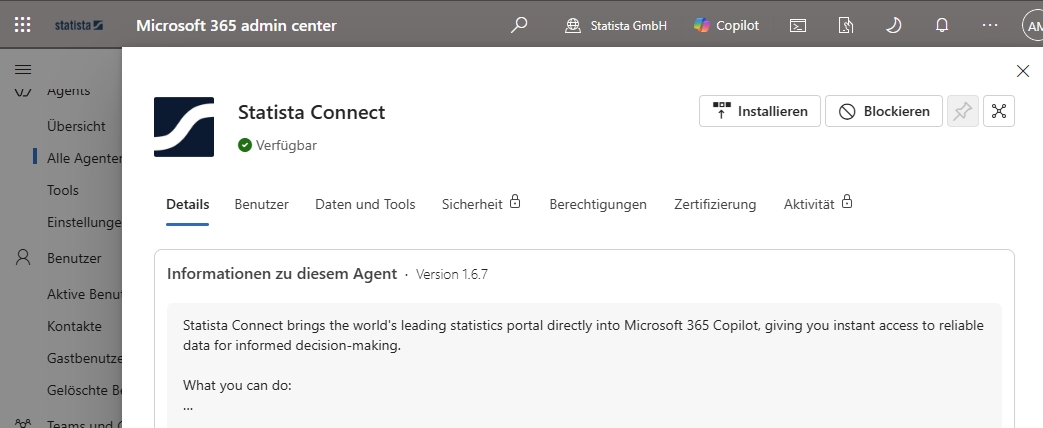
As an administrator, you can find and deploy Statista Connect through the Microsoft 365 Admin Center:
Option A: Copilot Agents Section
- Open Microsoft 365 Admin Center
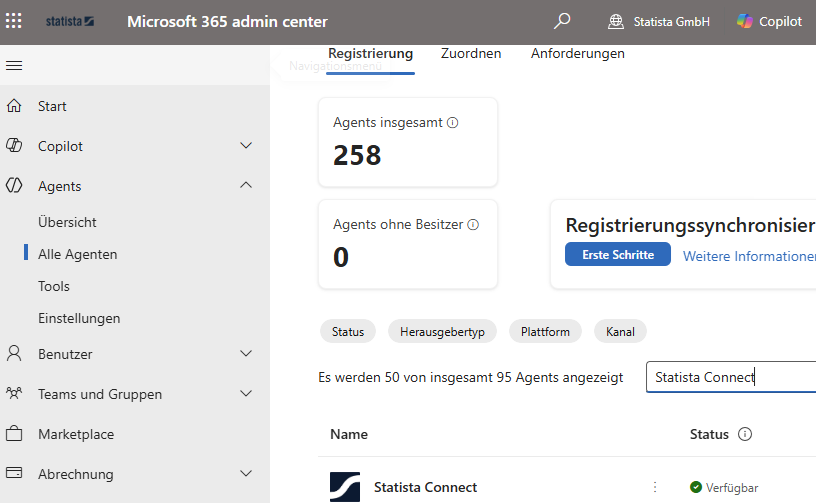
- In the Admin Center, go to Agents and All Agents
- Find Statista Connect in the list of available agents
Option B: Integrated Apps
- Open Microsoft 365 Admin Center
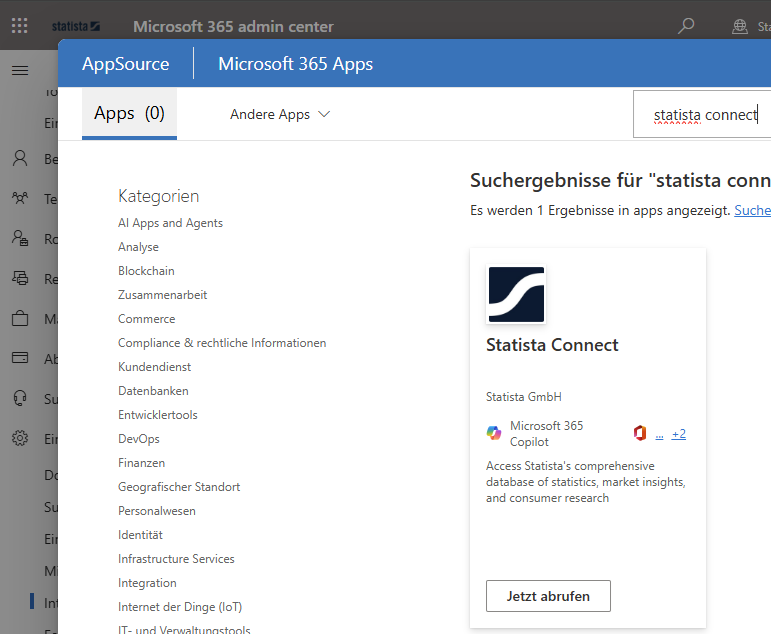
- Navigate to Settings and Integrated Apps
- Click Get apps and search for "Statista Connect"
Deploy Statista Connect to make it available for your users:
- Select Statista Connect from the app list
- Click Deploy or Get it now
- Click Deploy
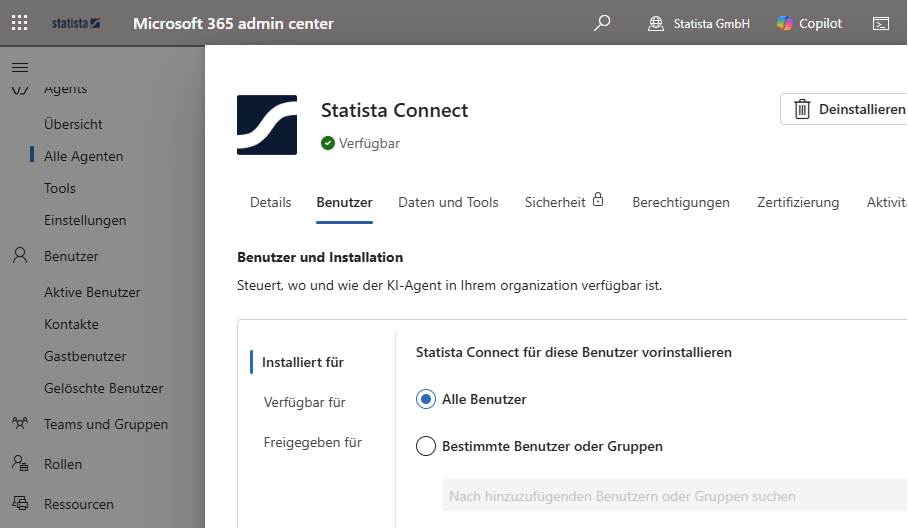
- Select deployment scope:
- Entire organization - All Copilot licensed users
- Specific users/groups - Selected users or security groups
- Just me - Test the app yourself first
- Accept the permissions request (Statista does not request any permissions)
- Click finish deployment
- Verify that you selected your desired users in Deplyoed to, as well as in availible to
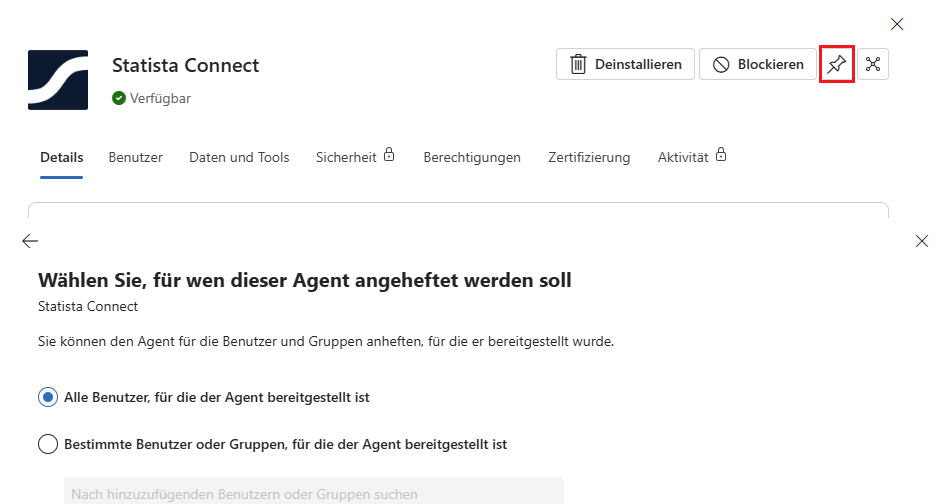
For better visibility, you can pin the agent for your users:
- Open the deployed app in Admin Center
- Click Pin for users
- Select everyone to pin the agent to all users the agent is deployed to
- The agent will appear automatically in users' Copilot sidebar
Need help?
If you encounter any issues during setup or have questions about Statista Connect.